
This guide explains how to set up and configure Internet Information Services (IIS) in Windows Server and Windows OS. Manual installation may be necessary if you encounter issues with the server installer or if you prefer more control over the components installed on your system. IIS is required because the DISCOVER application depends on Microsoft’s web server to run its components and handle all HTTPS requests.
Before proceeding, make sure you have followed the steps in the GuardWare DISCOVER: Server Installation and Setup Guide and have installed the necessary prerequisites (Visual C++ Runtime, Predis, and MySQL) before proceeding with this guide.
Install IIS on Windows Server
-
Click the Start menu, search for Server Manager, and open it.
-
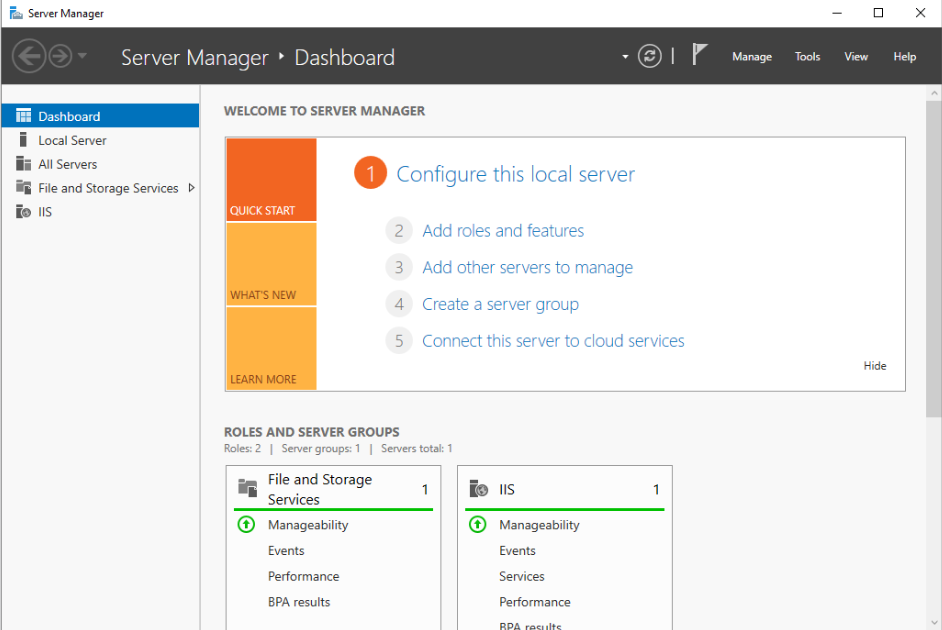
Click Add Roles and Features on the home screen, or click Manage in the top-right corner, and select Add Roles and Features.
-
On Before You Begin, click Next.
-
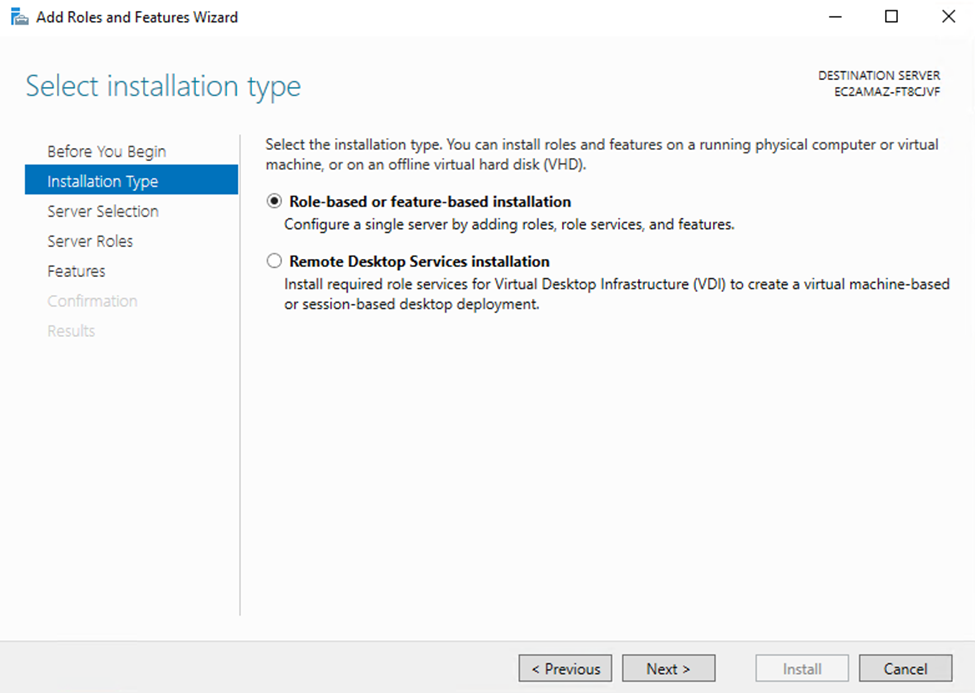
On the Select installation type, click Next.
-
On Installation Type, select Role-based or feature-based installation, and click Next.
-
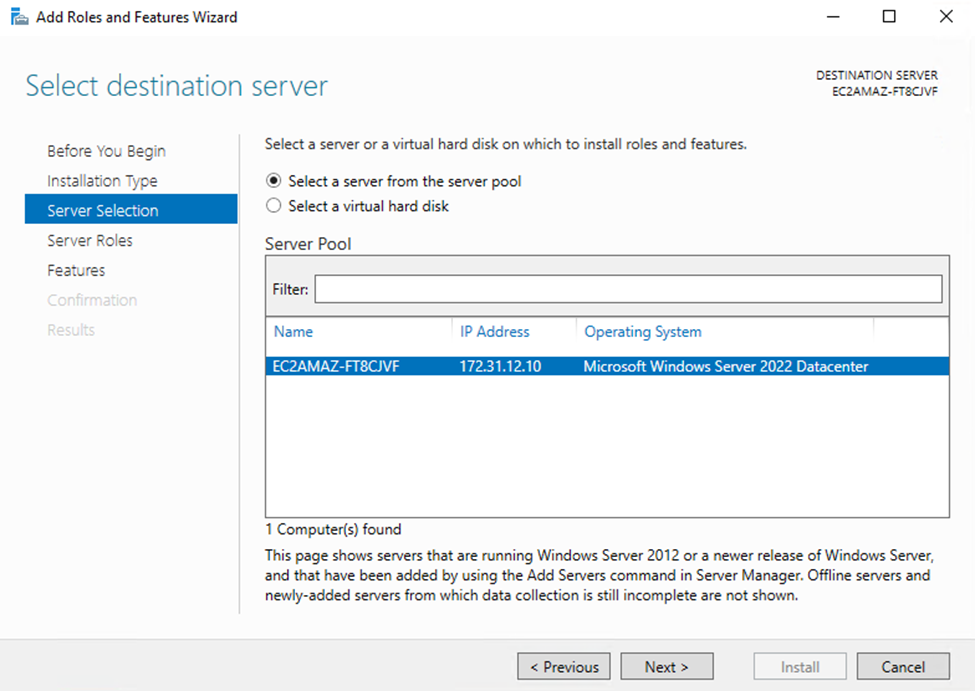
On Server Selection, click Select a server from the server pool, choose the server from the list, and click Next.
-
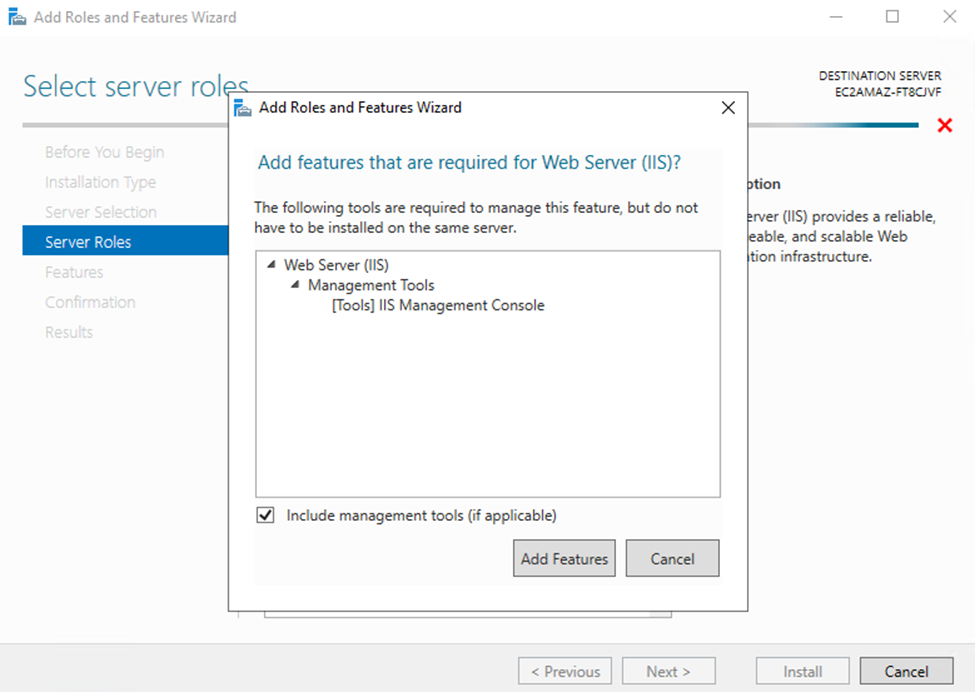
On Server Roles, select Web Server (IIS),
-
Select the Include Management tools (if applicable), click Add Features to close the window, and click Next.
-
Click Next on Features.
-
Click Next on Web Server Role (IIS).
-
Expand the Role Services under Web Server (IIS), and add the following features:
|
Parent |
Category |
Subcategory |
Feature |
|---|---|---|---|
|
Web Server (IIS) |
Management Tools |
IIS 6 Management Tools |
IIS Management Console |
|
World Wide Web Services |
Application Development Features |
CGI |
|
|
ISAPI Extensions |
|||
|
ISAPI Filters |
|||
|
Server-Side Includes |
|||
|
WebSocket Protocol |
|||
|
Common HTTP Features |
Default Document |
||
|
Directory Browsing |
|||
|
HTTP Errors |
|||
|
Static Content |
|||
|
HTTP Redirection |
|||
|
Health and Diagnostics |
HTTP Logging |
||
|
Custom Logging |
|||
|
Logging Tools |
|||
|
ODBC Logging |
|||
|
Request Monitor |
|||
|
Tracing |
|||
|
Performance Features |
Dynamic Content Compression |
||
|
Static Content Compression |
|||
|
Security |
Request Filtering |
||
|
IP and Domain Restrictions |
|||
|
URL Authorization |
-
Click Next and select Install to begin the installation.
-
Verify by opening Run, typing
inetmgr, and navigating tohttp://localhostin a browser. You should see the IIS welcome page.
Install IIS on Windows
-
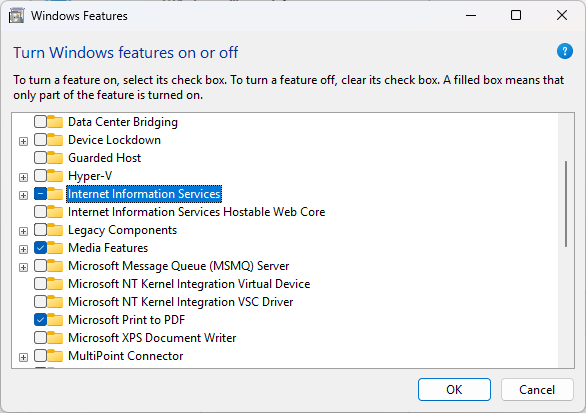
Open Run, type
optionalfeatures, and press Enter.

-
Expand Internet Information Services.
-
Select and add the following features:
|
Parent |
Category |
Subcategory |
Feature |
|---|---|---|---|
|
Internet Information Services |
Web Management Tools |
IIS 6 Management Tools |
IIS Management Console |
|
World Wide Web Services |
Application Development Features |
CGI |
|
|
ISAPI Extensions |
|||
|
ISAPI Filters |
|||
|
Server-Side Includes |
|||
|
WebSocket Protocol |
|||
|
Common HTTP Features |
Default Document |
||
|
Directory Browsing |
|||
|
HTTP Errors |
|||
|
Static Content |
|||
|
HTTP Redirection |
|||
|
Health and Diagnostics |
HTTP Logging |
||
|
Custom Logging |
|||
|
Logging Tools |
|||
|
ODBC Logging |
|||
|
Request Monitor |
|||
|
Tracing |
|||
|
Performance Features |
Dynamic Content Compression |
||
|
Static Content Compression |
|||
|
Security |
Request Filtering |
||
|
IP and Domain Restrictions |
|||
|
URL Authorization |
-
Click OK to begin the installation.
-
Verify the installation by opening Run, typing
inetmgr, and confirming that IIS Manager opens. You can also verify by launching a web browser and navigating tohttp://localhost.

After installing IIS, continue with the Server Setup in the Server Installation Guide.