
1. Overview
GuardWare DISCOVER is a data discovery and remediation system designed to locate, classify, and protect sensitive information across an organisation’s digital environment. It identifies sensitive data, notifies data owners, and initiates remediation where required.
In agent-based deployments, the DISCOVER Agent performs local scans on endpoint devices that have the agent installed. After scanning, the Agent, which is the execution engine that performs scanning and remediation tasks assigned by the DISCOVER Management Console, securely transmits results and activity logs to the Management Console for centralized monitoring and reporting.
This guide outlines the system requirements, installation procedures, and verification steps for deploying the DISCOVER Agent on endpoint devices.
2. System Requirements
Ensure the device meets the following system requirements before installing the DISCOVER Agent:
|
Component |
Requirements |
|---|---|
|
Processor |
4 core |
|
RAM |
8 GB |
|
Disk Space |
5 GB |
|
OS |
Windows 10, Windows 11, Windows Server 2019+ |
3. Install the DISCOVER Agent
-
Obtain the preconfigured
.msifile from your GuardWare administrator and double-click to launch it. -
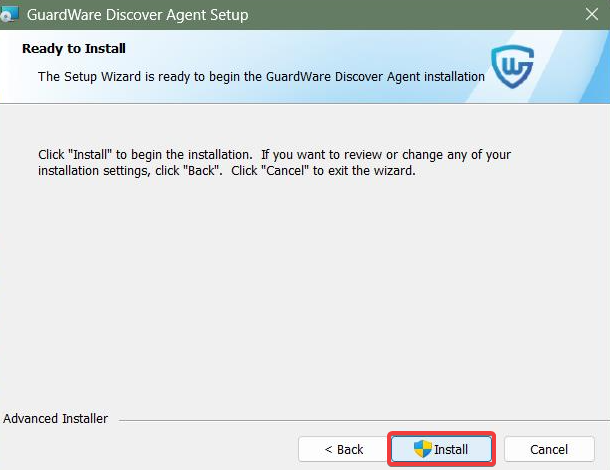
Select Next and click Install.
3.1 Verify Agent Installation
-
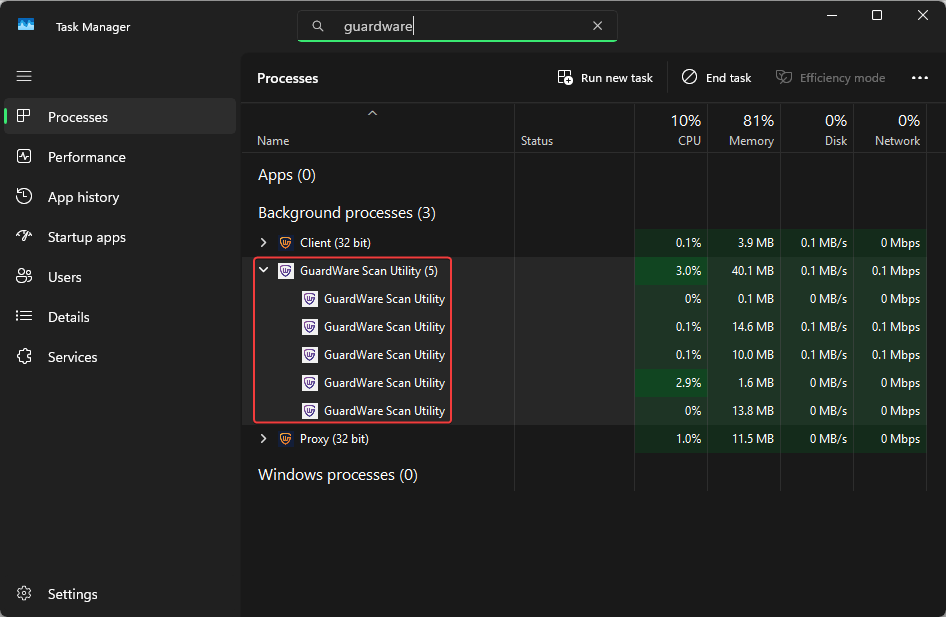
Open Task Manager by pressing
Ctrl + Shift + Esckeys. -
Under Processes, confirm that GuardWare Scan Utility is running under Background processes.
-
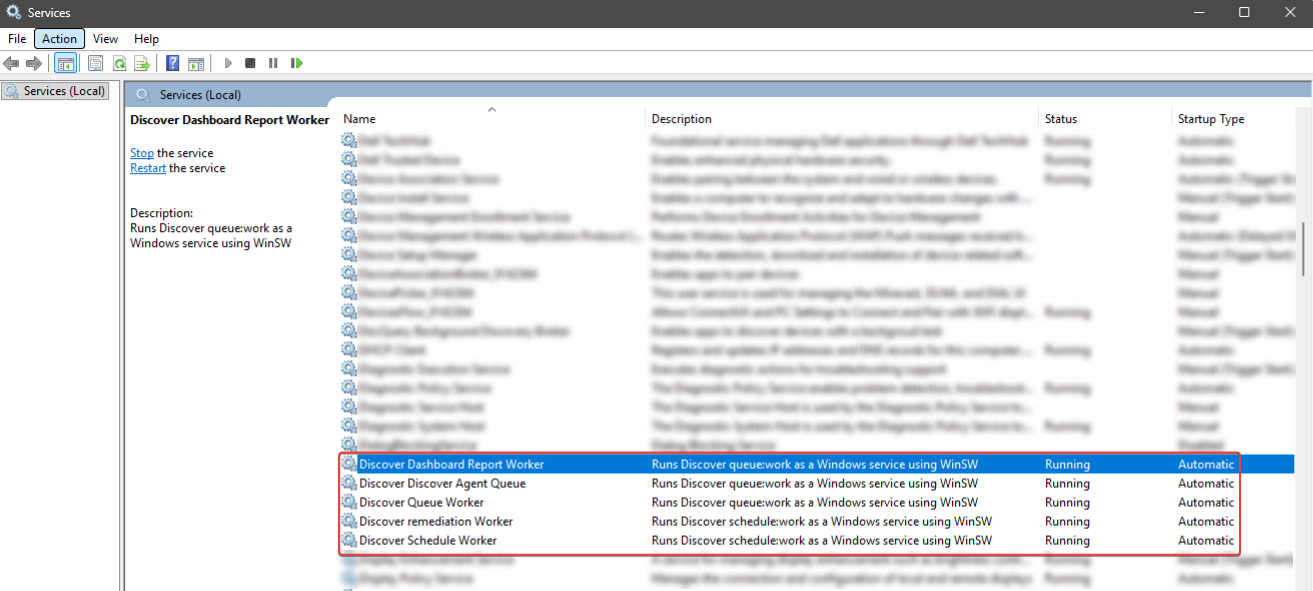
Additionally, you can open Run, type
services.msc, press Enter, and check the following services to confirm the agent installation:
The agent-installed device automatically registers with the DISCOVER Management Console when it falls within the organisation’s network via a TLS Handshake. It operates on the endpoint device and performs local scans, and securely communicates with the Management Console for reporting and coordination.
4. Next Steps
After verifying that the agent is running, close Task Manager and open a web browser.
-
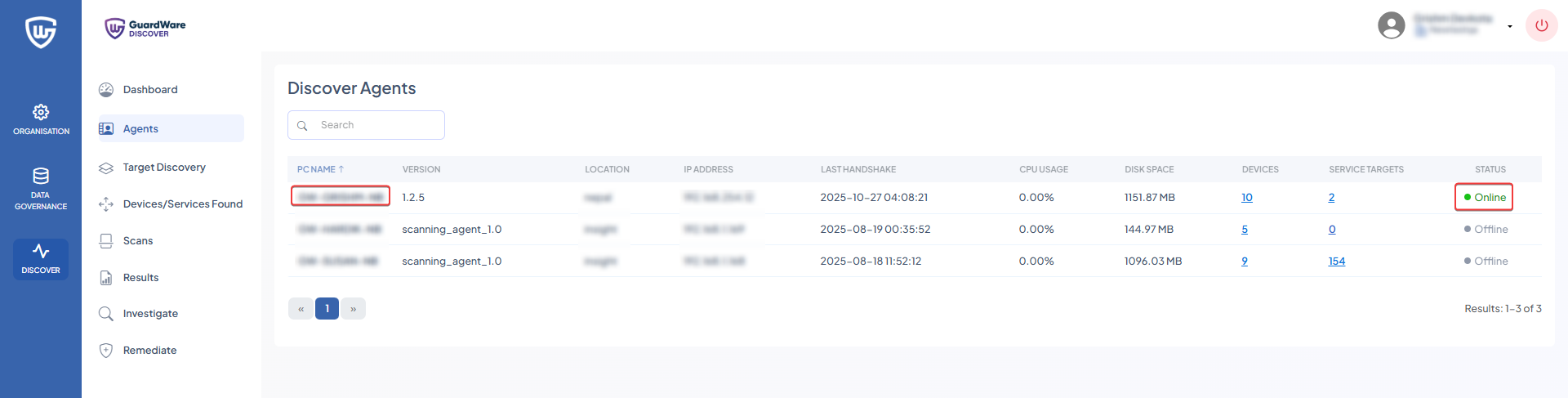
Go to the DISCOVER Management Console and verify that the agent-installed device appears under DISCOVER > Agents section and is Online.
-
You can perform a One-Time or an Ongoing local scan by selecting the agent device when configuring scan jobs.
-
Refer to the quick-start guide to set up scan jobs quickly, or refer to the detailed guide.